👉 Start generating high-quality QR codes instantly here: https://freeqrcodestudio.com/
QR codes have become a must-have tool for businesses, creators, marketers, and everyday users. And if you love designing visually appealing content, you’ve probably heard about the Canva QR Code Generator. This built-in feature inside Canva lets you add QR codes directly into your designs — but it also comes with certain limitations.
In this complete guide, you’ll learn how the Canva QR Code Generator works, how to use it effectively, its pros and cons, and why many users still prefer specialized tools such as FreeQrCodeStudio.com for advanced QR customization.
Let’s dive in!
Introduction: Why QR Codes Are Essential Today
QR codes bridge the gap between offline and online experiences. With one simple scan, a user can access:
- Websites
- Menus
- Digital forms
- Locations
- Files and PDFs
- Social media pages
- Portfolios
- Payment links
- Contact information
Whether you’re designing posters, business cards, brochures, or social media graphics in Canva, adding a QR code makes your content more interactive and user-friendly.
And while Canva’s built-in generator is useful, sometimes you need more flexibility — which is where tools like FreeQrCodeStudio.com shine.
👉 Mid-article reminder: you can also create fully customizable QR codes for free at https://freeqrcodestudio.com/
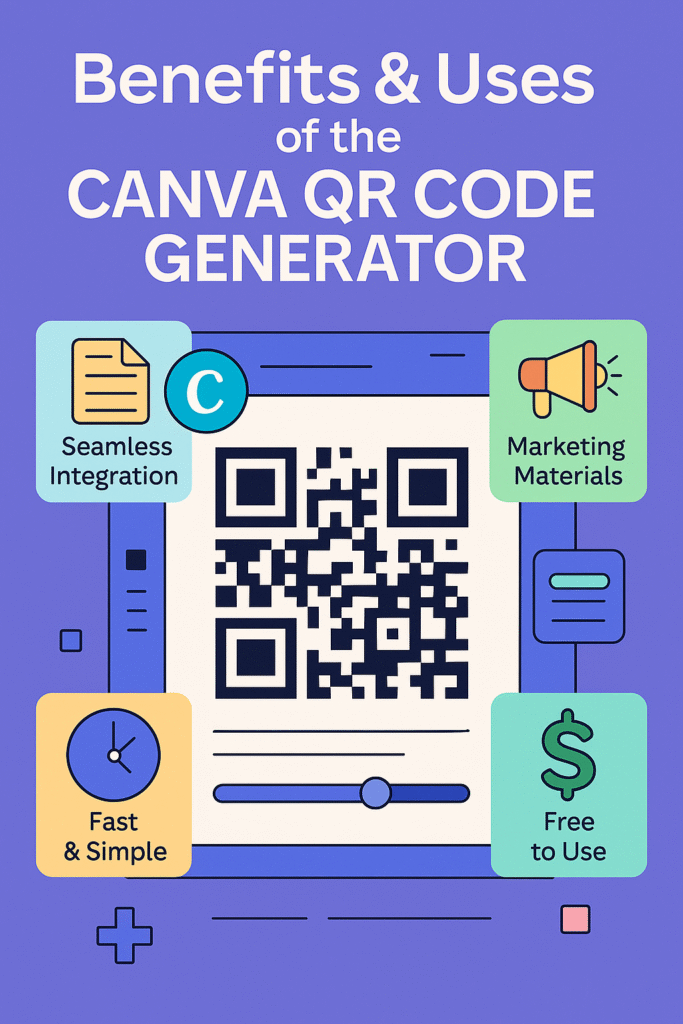
Benefits & Uses of the Canva QR Code Generator
The Canva QR Code Generator offers several benefits that make it ideal for quick design integrations.
✔ 1. Seamless Integration in Canva Designs
You don’t need separate tools — everything can be done right inside your design workspace.
✔ 2. Fast & Simple
Just enter your URL and Canva generates the QR code instantly.
✔ 3. Great for Visual Content
Perfect for:
- Posters
- Flyers
- Menus
- Business cards
- Presentation slides
- Event tickets
✔ 4. Free to Use
Canva allows free QR code creation without subscriptions.
✔ 5. Reliable for Static Links
For simple static links such as websites or menus, Canva works well.
However, the Canva QR Code Generator is basic. It doesn’t allow you to:
- Add a logo
- Change QR patterns
- Use different shapes
- Customize colors fully
- Generate vCard, Wi-Fi, SMS, or file-based QR codes
- Download the QR code separately
This is why many users create advanced QR codes on FreeQrCodeStudio.com and then import them into Canva for final design.
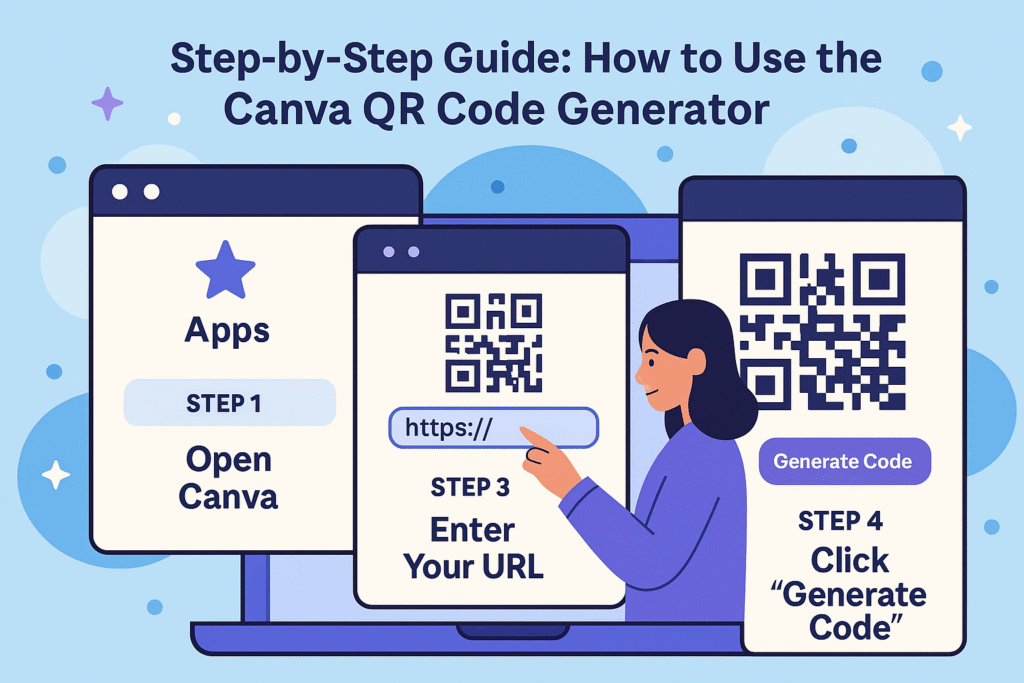
Step-by-Step Guide: How to Use the Canva QR Code Generator
Here’s the simplest walkthrough for generating a QR code directly inside Canva:
Step 1: Open Canva
Go to Canva and create any design — poster, flyer, business card, etc.
Step 2: Go to “Apps”
In the left sidebar, scroll down and click Apps.
Step 3: Select “QR Code” App
Search for “QR Code” within the Apps library.
Step 4: Enter Your URL
Type or paste your website link, landing page, menu, or file URL.
Step 5: Click “Generate Code”
Canva instantly places the QR code onto your design.
Step 6: Resize & Position It
You can move it around, resize it, or frame it with graphics.
Optional: Import a custom QR instead
If you need advanced customization:
- Generate your QR at FreeQrCodeStudio.com
- Download it in PNG, JPG, or SVG
- Upload it into your Canva design
This gives you the best of both — Canva’s layout tools + your fully customized QR code.
Features of the Canva QR Code Generator
Canva’s QR generator is simple but helpful. Here’s what it includes:
Basic Features:
- Generate QR codes for URLs
- Instant integration into designs
- Free to use
- Resize without losing quality
- Works on desktop and mobile
Limitations:
- Only supports URL-based QR codes
- No logo insertion
- No color styling
- No shape options
- No direct QR download
- No dynamic QR features
- No high-resolution standalone export
If you need more advanced features, FreeQrCodeStudio.com provides:
- Custom shapes
- Custom colors
- Logo uploads
- Multiple QR formats (Wi-Fi, vCard, PDF, social links)
- High-resolution downloads
- Printable formats including SVG and PDF
How the Canva QR Code Generator Works
The Canva QR Code Generator creates a static QR code using the URL you provide. It encodes the link into a small, scannable pixel pattern. When a user scans the code:
- Their phone camera reads the QR pattern
- It detects the encoded data
- It opens the link automatically
This method is reliable—but limited—because Canva only supports URL-based static QR codes.
More advanced tools like FreeQrCodeStudio.com support:
- Multi-content QR types
- Editable QR codes
- Branding elements
- High-resolution exports
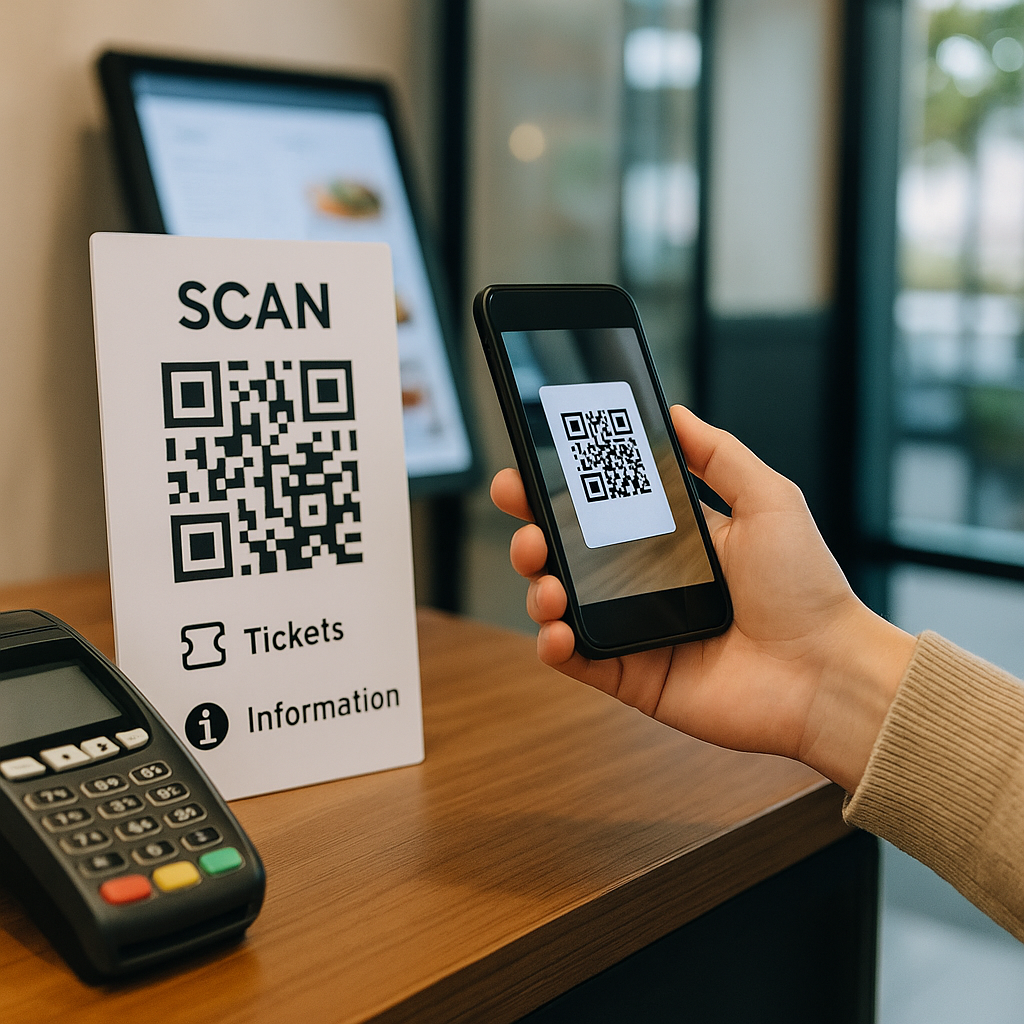
When Should You Use the Canva QR Code Generator?
Canva’s QR generator is perfect for:
✔ Quick marketing designs
Posters, flyers, banners, and ads.
✔ Basic website links
No need for customization — just add a link and generate.
✔ Social media graphics
Lead people directly to your website or product.
✔ Event promotions
QR codes for sign-ups, schedules, or tickets.
✔ Restaurant menus
Ideal for linking to a digital menu hosted online.
✔ School & office presentations
Link to assignments, forms, or resources.
But for professional branding and advanced QR codes, Canva alone might not be enough.
That’s why many users create their QR codes on FreeQrCodeStudio.com first.
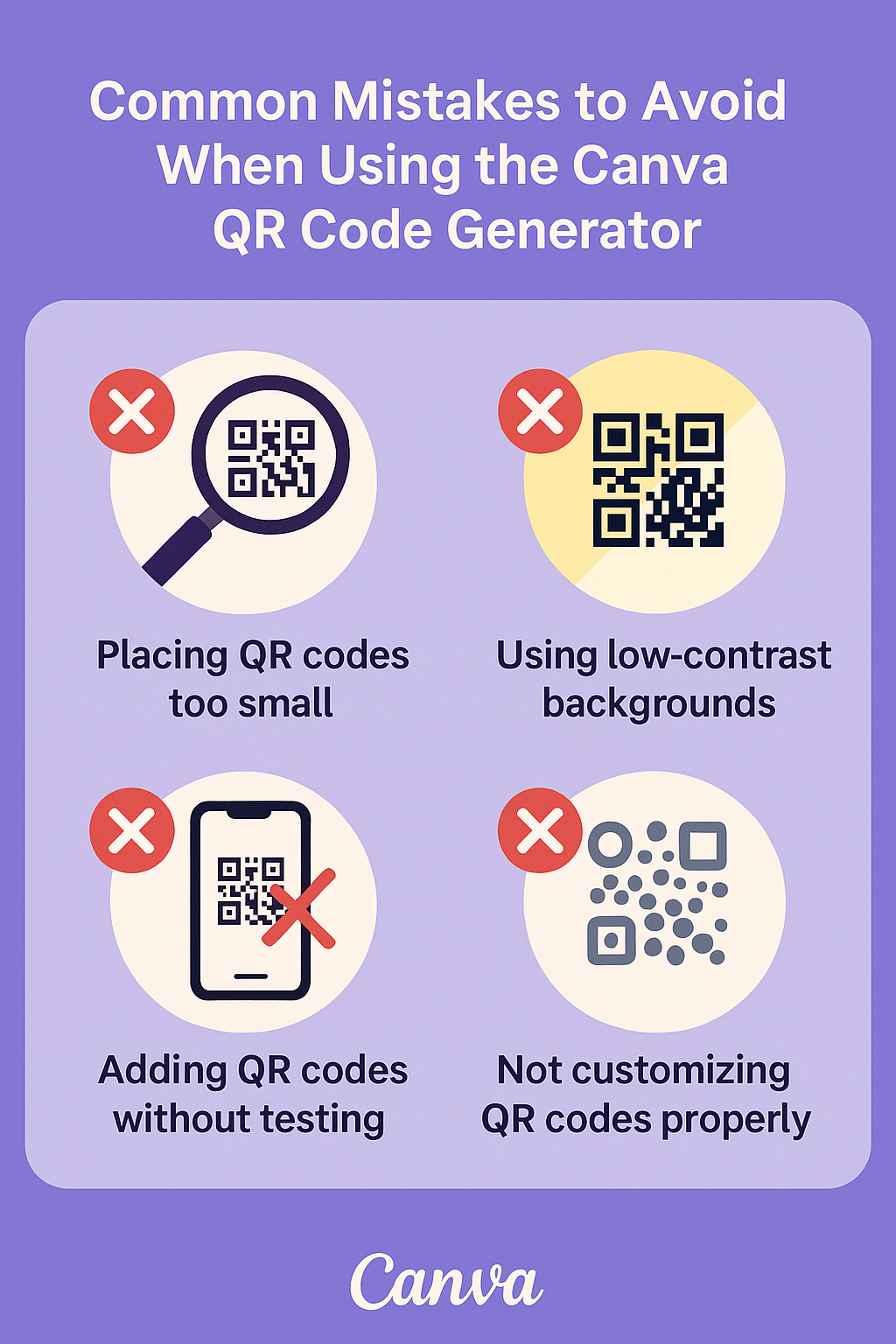
Common Mistakes to Avoid When Using the Canva QR Code Generator
Even with Canva’s simplicity, users often make mistakes.
❌ Mistake 1: Placing QR codes too small
Always make them large enough to scan easily.
❌ Mistake 2: Using low-contrast backgrounds
QR codes should be placed on solid, clear backgrounds.
❌ Mistake 3: Adding QR codes without testing
Always test scans with multiple devices.
❌ Mistake 4: Linking to long or unstable URLs
Use short URLs or reliable hosting.
❌ Mistake 5: Not customizing QR codes properly
Canva’s generator has limited customization — for brand-friendly designs, generate the QR elsewhere.
Bonus Tips for Better QR Code Designs
⭐ Use a frame or call-to-action
“Scan Me” or “View Menu” increases scan rates.
⭐ Use branded colors (but keep contrast high)
A touch of branding boosts trust.
⭐ Add your logo using custom QR tools
With tools like FreeQrCodeStudio.com, you can insert your logo directly.
⭐ Place QR codes at eye level
On posters or kiosks, placement matters.
⭐ Print sample tests before finalizing
Testing avoids last-minute scanning issues.
Conclusion
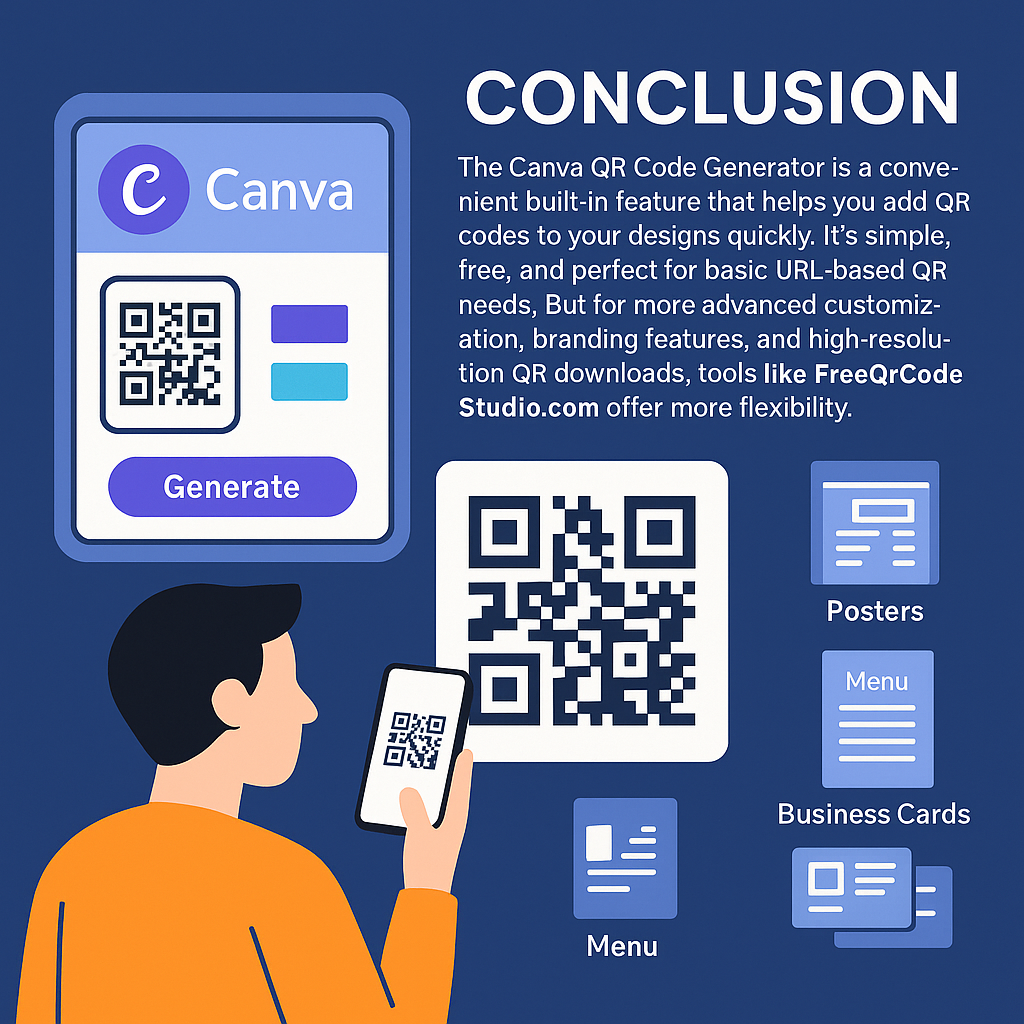
The Canva QR Code Generator is a convenient built-in feature that helps you add QR codes to your designs quickly. It’s simple, free, and perfect for basic URL-based QR needs. But for more advanced customization, branding features, and high-resolution QR downloads, tools like FreeQrCodeStudio.com offer far more flexibility.
Whether you’re designing posters, menus, or business cards, using the right QR generator will help you create a professional, interactive experience for your audience.
Strong CTA: Create Customized QR Codes in Seconds
👉 Try the full-featured, free QR generator here: https://freeqrcodestudio.com/
Create high-quality, customizable QR codes with logos, color styling, multiple formats, and unlimited downloads — all for free.
FAQs About the Canva QR Code Generator
1. Is the Canva QR Code Generator free?
Yes. Canva lets you generate basic URL-based QR codes for free inside any design.
2. Can I customize the QR code inside Canva?
You can resize and reposition it, but deeper customization like colors, shapes, and logos must be done using tools like FreeQrCodeStudio.com.
3. How do I insert a QR code in Canva?
Go to “Apps” → Select “QR Code” → Enter your URL → Click “Generate.”
4. Do QR codes created in Canva expire?
No. Since Canva creates static QR codes, they remain active as long as the linked URL works.
5. Can I download the QR code separately from Canva?
Not directly. Canva embeds the QR code into your design. If you want a standalone QR code, generate one at FreeQrCodeStudio.com and upload it into Canva.
6. Does Canva support QR codes for Wi-Fi, PDF, or vCard?
No. Canva only supports URL-based QR codes. For multiple formats, use FreeQrCodeStudio.com.
7. What’s the best alternative to Canva’s QR generator?
FreeQrCodeStudio.com is one of the best alternatives for advanced customization, multi-format QR codes, and high-resolution downloads.